
Your first site
This guide takes about 15 minutes. You’ll end with a site running on your computer that you’ve changed yourself. You need Node.js and Git installed, and for a PRO template, a license (see Buy a template).
1. Connect your license (PRO templates only)
Section titled “1. Connect your license (PRO templates only)”Skip this for free templates. In a terminal:
npx wptom loginnpx downloads and runs the WPTom CLI; the first time it asks Ok to proceed? (y): press
Enter. The CLI shows a code like 5X78-X588 and opens your browser:
- Sign in to app.wptom.com with the email you bought with (a sign-in link arrives by email, or use Continue with GitHub).
- Check that the code on the page matches the one in your terminal, then click Approve.
- Back in the terminal you’ll see
Logged in as you@email.com · All-access.
You do this once per computer. Details: wptom login.
2. Create the site
Section titled “2. Create the site”Go to the folder where you keep projects (e.g. cd Documents), then:
npx wptom new my-site -t auroramy-siteis the folder it creates; name it after your project.-t aurorapicks the template.npx wptom listshows them all.
If the template comes in variants, the CLI asks where the content should live:
◆ Where should the content live?│ ● Files or Sanity (static site, any host)│ ○ EmDash (EmDash inside the site: admin at /_emdash/admin, rendered on request on Cloudflare Workers (D1 + R2).)Not sure? Keep Files or Sanity (press Enter). Your content is then plain files in your project, edited in a visual editor, and you can still move it to Sanity later. Read Content and CMS to compare.
When it’s done:
◇ Created my-site from aurora@1.0.0│◇ Next steps ───╮│ ││ cd my-site ││ npm install ││ npm run dev ││ │├────────────────╯│└ Updates later: wptom update keeps your edits.3. Install and start it
Section titled “3. Install and start it”Run the three commands it suggests:
cd my-sitenpm installnpm run devnpm install downloads what the site needs (a minute or two, once). npm run dev starts the
site on your computer and prints a line starting with Local followed by an address (on
your own computer: the word localhost and a port number, usually 4321). Open that address in
your browser; in most terminals you can ⌘/Ctrl-click it. That’s your site, with the template’s demo content:
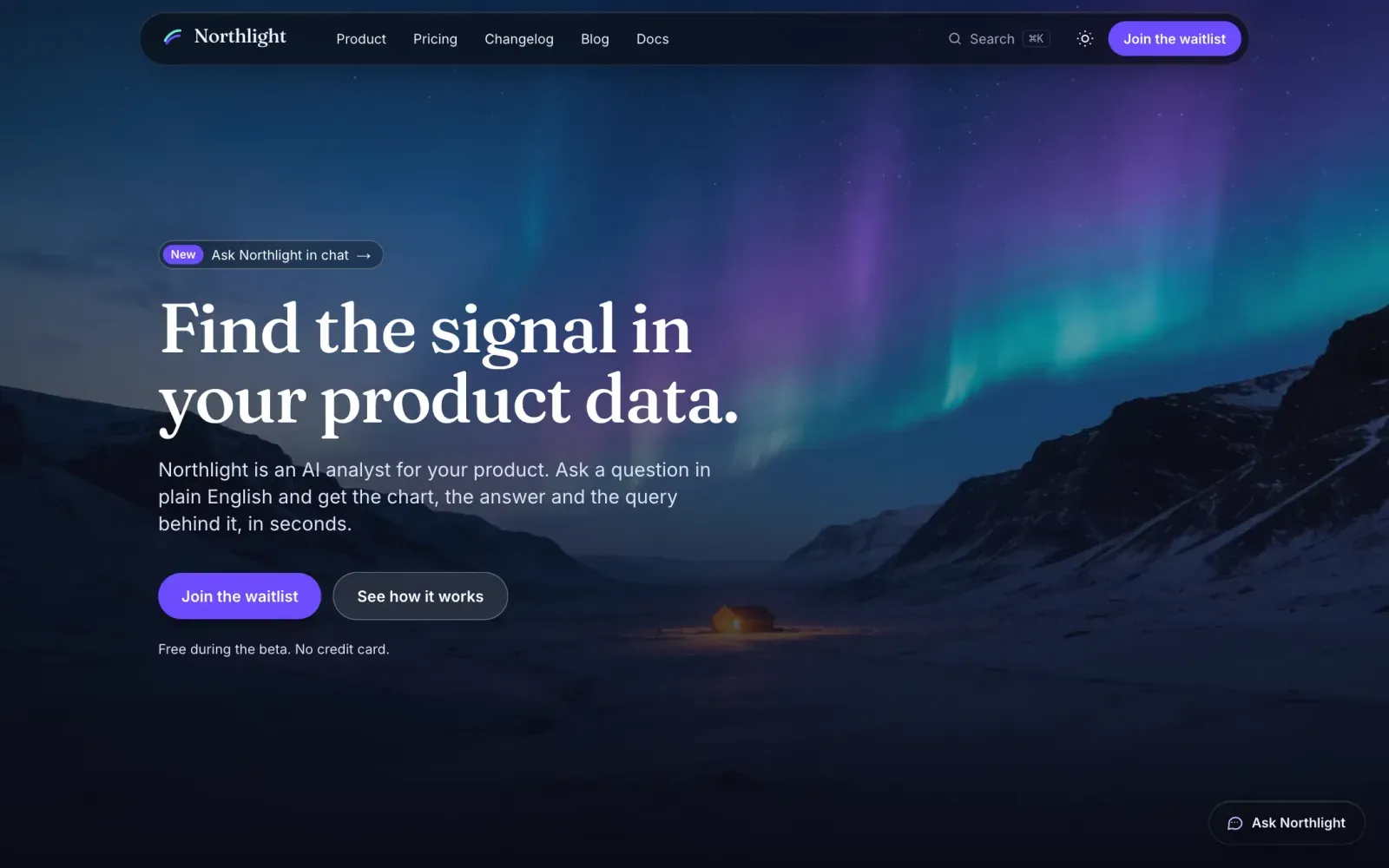
Leave this terminal running while you work; every change you save shows up in the browser right away. To stop it, press Ctrl C.
4. Open the project in your editor
Section titled “4. Open the project in your editor”In VS Code: File → Open Folder… and pick my-site. The files that matter most:
| File or folder | What’s in it |
|---|---|
src/content/ |
All texts, posts, docs and settings (what the editor below changes) |
src/content/singletons/brand.json |
Colors, fonts, corners and button shape |
src/assets/photos/ |
The photos |
.env.example |
Settings for email, payments, analytics, AI chat… (all optional) |
AGENTS.md |
How the site is built, for you and your AI assistant |
README.md |
The short version of this guide |
You rarely need to touch the code: most changes happen in the content editor.
5. Change your content in the editor
Section titled “5. Change your content in the editor”With npm run dev running, open the same address with /keystatic added at the end. This is Keystatic, the content editor. It edits the
files in your project, so nothing is online yet.
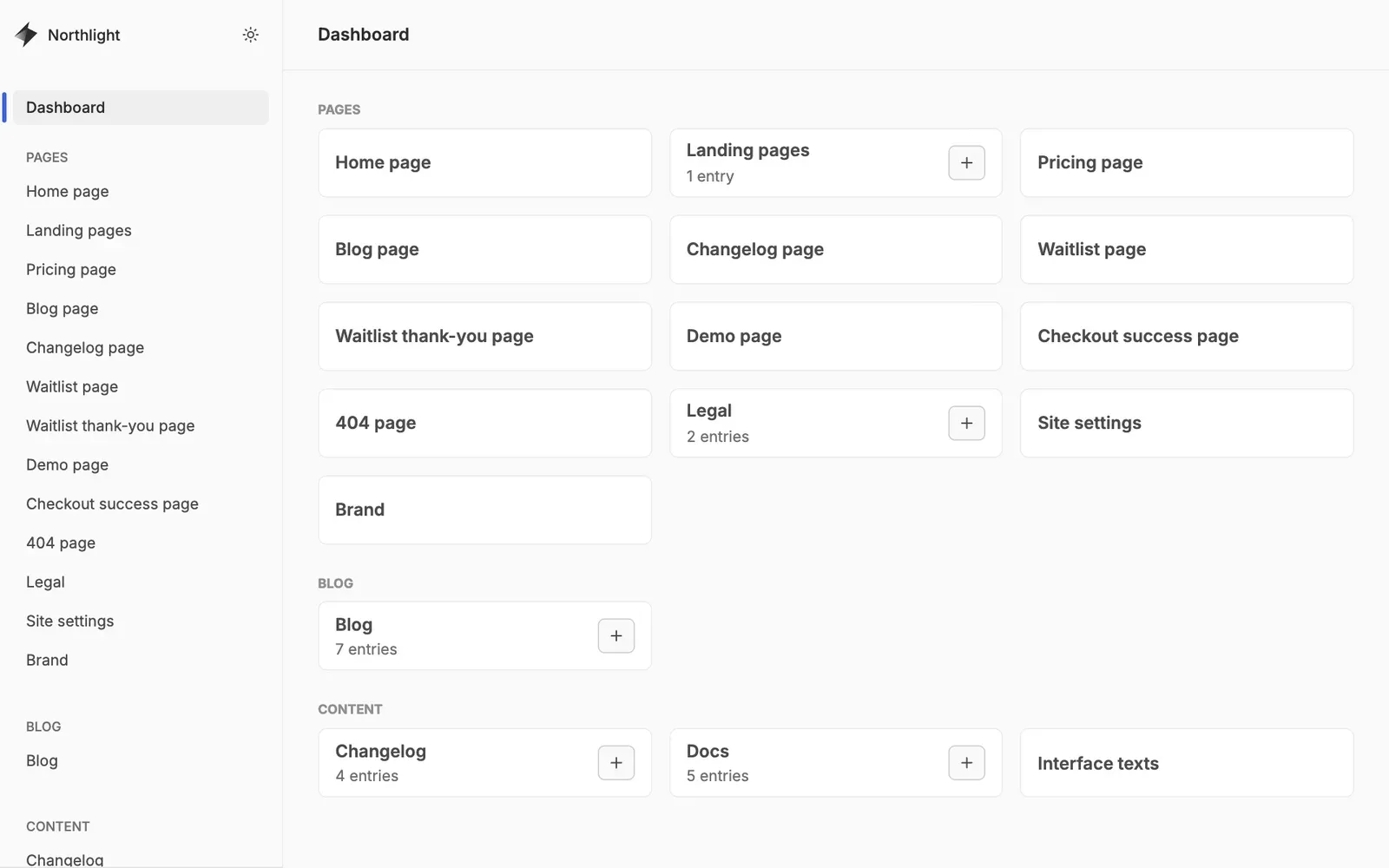
The sidebar matches your site:
- Pages: the home page, landing pages, pricing, blog page, and every other page.
- Site settings: your product name, tagline, navigation and footer.
- Brand: colors, fonts, corners, button shape.
- Blog, Changelog, Docs: your posts and articles.
- Interface texts: buttons, labels, messages and emails.
Your product name and navigation
Section titled “Your product name and navigation”Open Site settings. Change Product name, Tagline and Description, adjust the navigation links and footer columns, then click Save (top right). Reload your site: the header, footer, browser tab and search previews all use the new name.
The home page
Section titled “The home page”Open Home page. A page is a list of sections (hero, product, steps, testimonials, pricing, FAQ…):
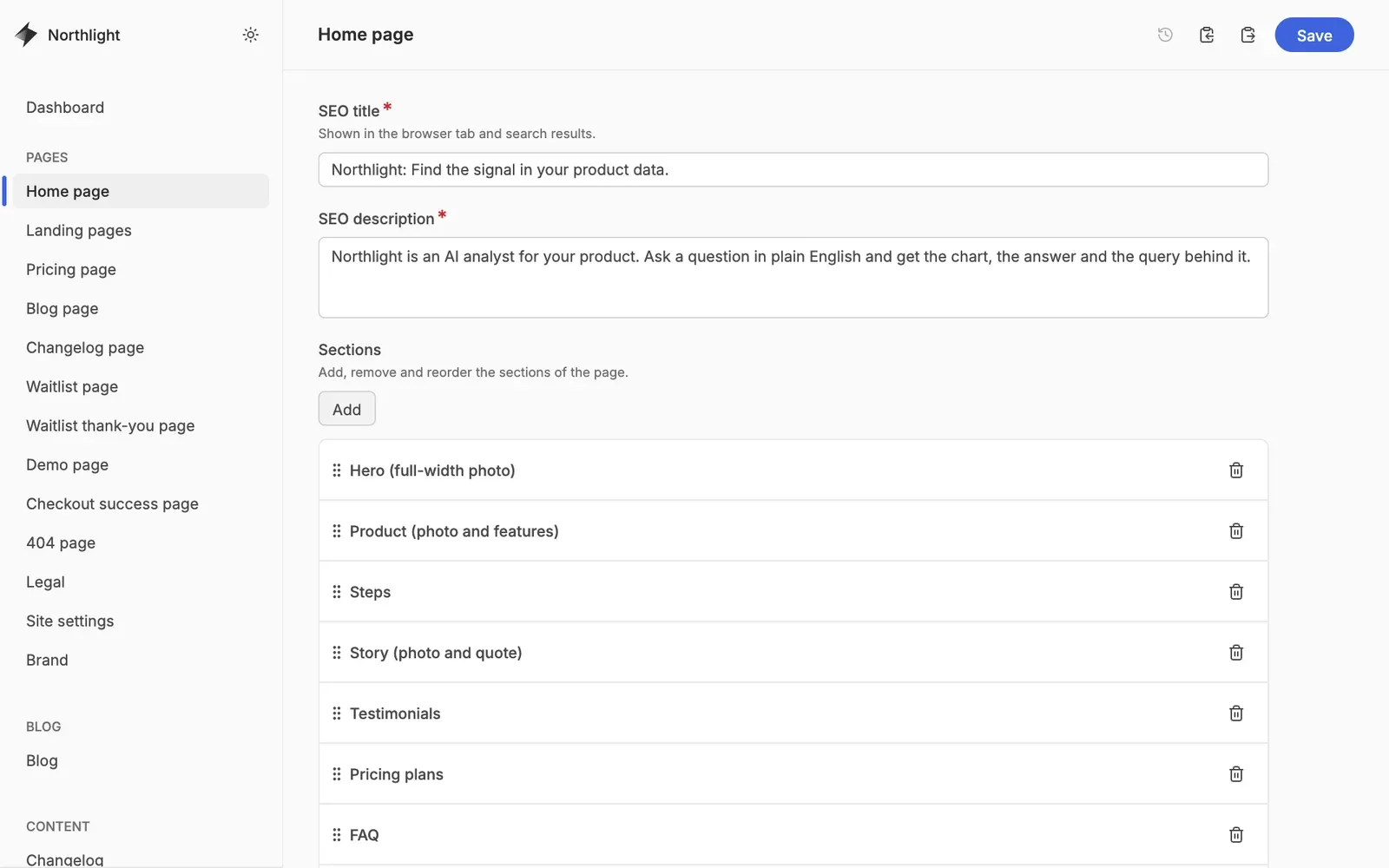
- Click a section to edit its texts, buttons and photo.
- Drag the handle on the left to reorder sections; the bin icon removes one.
- Add inserts a new section of any type.
Click Save after each change.
A blog post
Section titled “A blog post”Open Blog, then a post, or + to write a new one:
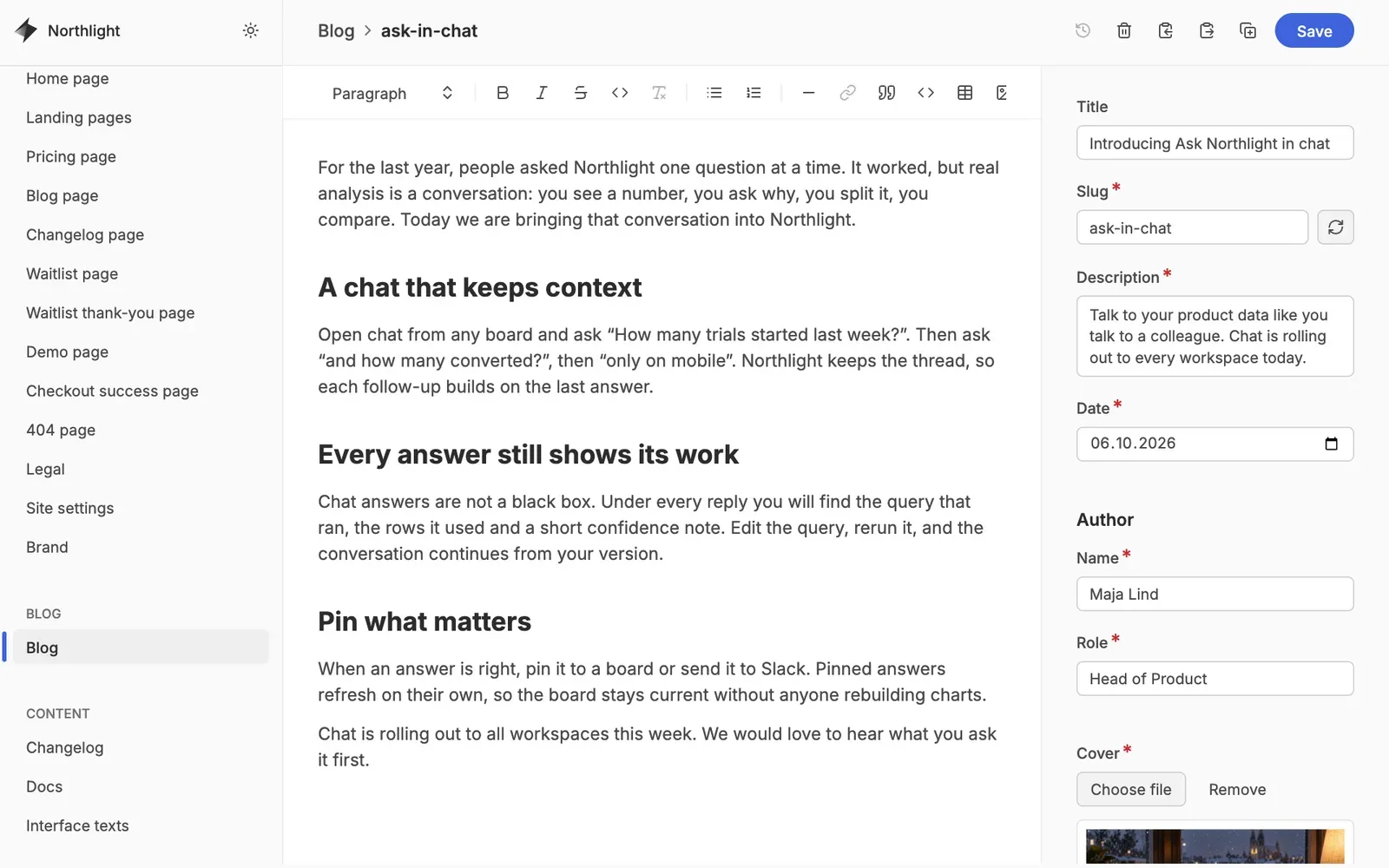
The text is on the left (headings, lists, links, images, code). On the right: title, slug (the
web address, e.g. /blog/ask-in-chat), description, date, author and cover photo. Tick
Draft to keep a post off the site until it’s ready.
Photos
Section titled “Photos”Wherever there’s a photo field, Choose file uploads a new one. Use large photos (at least 2000 px wide): the site makes smaller, faster versions for every screen by itself. Always fill in the photo description (alt text): screen readers read it out.
The template’s demo photos are yours to use on any site you build with it (see LICENSES.md).
Prices
Section titled “Prices”Pricing page holds your plans (name, price per month and per year, features, button), the
comparison table and the FAQ, plus the Currency of your prices (e.g. USD, EUR). Leave
a price empty to show “Custom”.
6. Make it yours: colors and fonts
Section titled “6. Make it yours: colors and fonts”Open Brand:
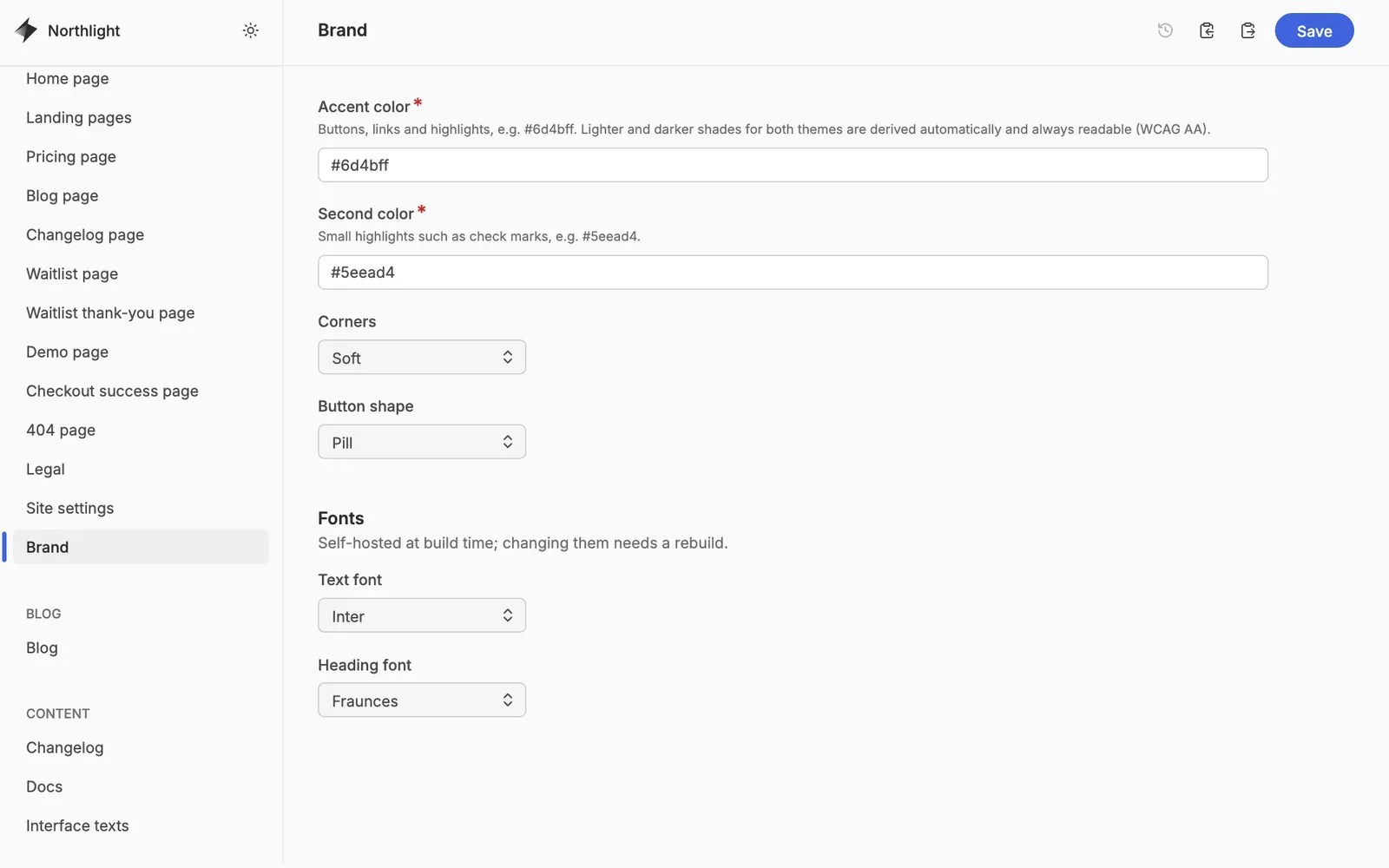
- Accent color: buttons, links and highlights. Type a color like
#0f9c8a. The site works out lighter and darker shades for the dark and light theme by itself, and they’re always readable (WCAG AA). If a color can’t be made readable, it tells you. - Second color: small highlights such as check marks.
- Corners and Button shape: sharp, soft or round; pill or rounded buttons.
- Fonts: pick the text and heading fonts. Fonts are set when the site starts, so after
changing them, stop
npm run dev(Ctrl C) and start it again.
Try accents first in the template’s live demo: it has a color switcher (bottom left).
7. Check the finished site
Section titled “7. Check the finished site”npm run buildThis makes the final, optimized site (the same thing your host will do). If anything is wrong, for example a required field you left empty, it stops and says what and where. Fix it in the editor and build again.
8. Save your work with Git
Section titled “8. Save your work with Git”Git keeps a history of your changes and lets wptom update merge new template
versions safely. In the project folder:
git initgit add .git commit -m "My site"From now on, after a round of changes: git add . and git commit -m "What I changed".
- Put your site online
- Turn on the features: email, waitlist, payments, AI chat, analytics, demo booking
- Keep it up to date
- Your template’s own page, e.g. Aurora